


FixMyPics - Restore Old Photos
4.3724.00 Reviews
App Specs
- Version
- 2.0.5
- Updated On
- License
- Free
- Downloads
- 1,000,000+
- Developer
- Kallossoft
- Categories
- Photography
- Platform
- Android
Screenshots
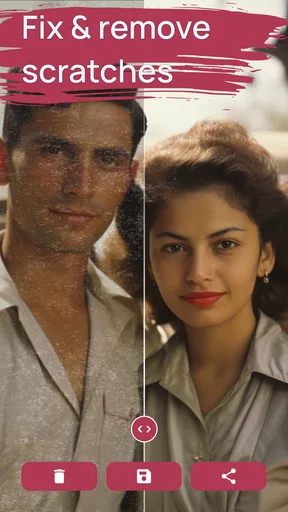
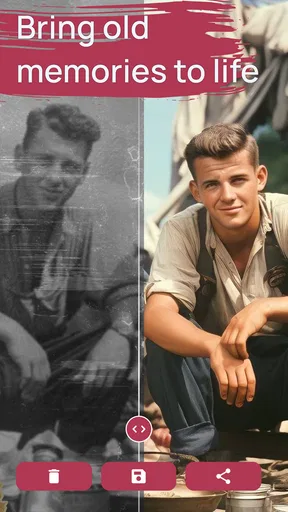
 Analysis by AppCompare
I opened FixMyPics - Restore Old Photos with a simple goal: make a damaged family photograph look presentable without learning complicated editing software. That first impression is still the app’s strongest moment. It is a focused photography tool from Kallossoft, built around repairing old images and adding color to pictures that were originally monochrome. Rather than asking me to understand layers, masks, curves, or restoration terminology, it puts the emotional result first: take an image that feels lost and give it a more usable form.
That focus makes the app easy to understand, but it also sets the right expectations. This is not a complete photo studio, and I would not use it as my main editor. Its appeal comes from a narrower task: trying to improve the appearance of aging photographs with very little preparation. For someone sorting through a box of family prints, preparing a memorial slideshow, or simply curious about how an old portrait might look with color, that narrow purpose can be valuable.
From first-week curiosity to a realistic long-term habit
I use this section to consider whether FixMyPics remains useful after the initial before-and-after excitement fades. For me, a sustainable habit is less about processing more pictures and more about choosing a small, meaningful project, preserving originals, and deciding when the app’s quick interpretation is enough. That leads naturally to how comfortably different people can navigate the work.
Why the first few sessions feel rewarding
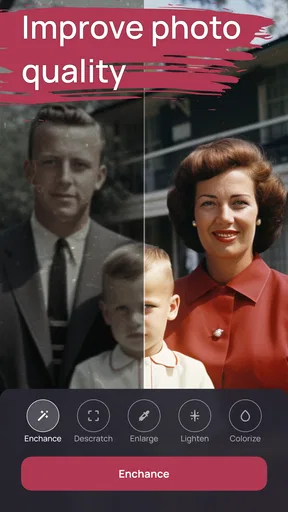
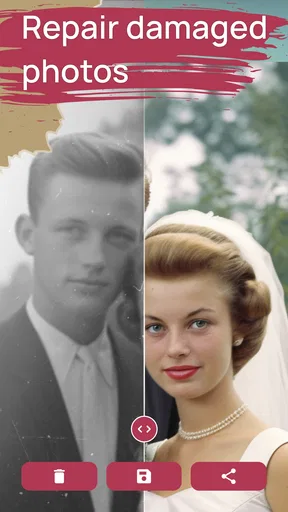
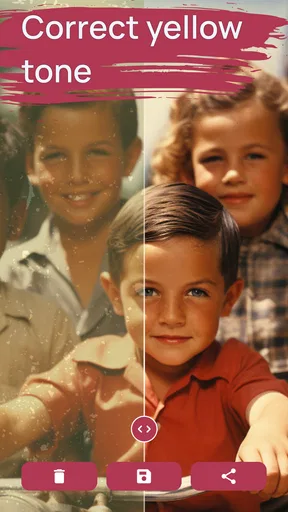
The first week is where the app has the most natural momentum. I can choose an old image, send it through the restoration or colorization process, and compare the result with the original. That before-and-after moment gives the experience a clear payoff, especially when the source picture has faded contrast, visible age, or a black-and-white appearance that makes it feel distant.
The best early use is not treating every photograph as a candidate for a dramatic transformation. I found it more useful to begin with images that have a recognizable subject, reasonably clear faces, and enough contrast for the app to interpret. A sharply scanned portrait is a better starting point than a tiny screenshot of a damaged print. This is an important distinction because an automated tool can only work with the visual information it receives; it cannot recreate details that were never captured.
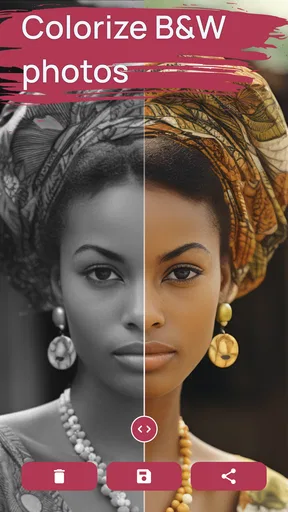
Colorization is particularly appealing for family archives. A black-and-white photograph can suddenly feel closer to the present when clothing, surroundings, or skin tones receive plausible color. I would still describe those colors as an interpretation rather than historical proof. If the exact shade of a dress, wall, or uniform matters, I would keep the original beside the edited version and avoid presenting the result as documentary evidence.
Restoration has a similar trade-off. A cleaned-up image may be more pleasant to view, but smoothing can also reduce the character of paper texture, soft focus, or small facial details. My practical advice is to preserve the untouched file first, then treat the processed copy as a new version. That simple habit prevents an enthusiastic first attempt from becoming the only copy of an irreplaceable memory.
Worth Reading Before You Choose

EA SPORTS FC Mobile 26 Is a Bigger Football Game, but It Takes Time

Flipboard Shows What News Apps Must Do Beyond the Feed

Switching to Android Auto Means Rethinking Your Driving Routine

Google Calendar Makes a Crowded Week Easier to Manage

Ludo King Makes the Most of the Minutes Between Plans

Baby Panda World Brings Quick Play to Modern Phones, but Its Game Library Feels Busy
A useful workflow for family photographs
For a realistic home project, I would work in batches rather than processing an entire archive at once. First, I would photograph or scan a small group of prints in even light, keeping the camera parallel to the image. Then I would choose a few representative pictures: one portrait, one group shot, and one image with a busy background. Processing those examples shows whether the results suit the whole collection before I spend time on every picture.
This workflow also exposes a non-obvious limitation: the quality of the input often matters more than the excitement of the tool. Reflections from glossy paper, crooked framing, dust on the scanner, and deep creases can all become part of the final result. FixMyPics can help with an image, but it does not remove the need for careful preparation. A clean, well-lit capture gives the app a much better chance than a rushed phone photo taken under a ceiling lamp.
When I compare the result, I look at three areas separately: faces, large blocks of color, and fine texture. A face may look more legible while a patterned shirt becomes artificial. A background may gain attractive color while a shadow receives an odd tint. Judging the whole picture only by its immediate emotional impact can hide those inconsistencies, so zooming in briefly is worthwhile before sharing or printing anything.
Where it fits beside ordinary editing tools
Compared with a standard mobile editor, this app is more approachable for restoration-specific experiments. Traditional editors give me much finer control over exposure, sharpening, healing, selective color, and cropping, but they also require more decisions. If I already know how to repair a crease manually or adjust a faded scan, a conventional editor may produce a more predictable result.
Compared with a desktop restoration program, FixMyPics is better suited to quick personal projects than professional archival work. Desktop software generally offers more precise control and a larger workspace, which matters when an image will be printed at a substantial size or handled as part of a historical collection. The mobile approach wins when convenience matters more than pixel-level supervision.
That middle position is the reason I can recommend it selectively. It is less intimidating than a serious editing suite and more purpose-built than a general filter app. The question is not whether it replaces every alternative; it does not. The question is whether a quick, guided attempt is enough for the image in front of me.
What the first week does not reveal
Novelty can make almost any restoration app feel essential. After several dramatic before-and-after comparisons, I noticed that not every photograph deserves processing. Some originals are already attractive because of their softness, unusual exposure, or visible age. Applying the same treatment to all of them can make a family album feel strangely uniform.
I also would not expect one pass to solve a severely damaged image. If a face is partly missing, text is unreadable, or the photograph is extremely blurred, the result may look cleaner without becoming genuinely accurate. That distinction matters for old documents, military records, and photographs where identity is important. For those cases, I would use the app as an exploratory step, not as the final authority.
Month-to-month value: when it earns another opening
After the initial curiosity fades, the app’s continuing value depends on whether I have a recurring reason to revisit old images. It is not the kind of application I expect to open every day. Its long-term role is more seasonal and project-based: organizing a family history collection, preparing photographs for a birthday gathering, making a remembrance album, or gradually working through prints stored in several boxes.
That can still be meaningful. A tool does not need daily use to deserve space on a phone if it solves a task I would otherwise keep postponing. FixMyPics lowers the barrier to starting. I can process one photograph during a quiet moment instead of waiting until I have time to learn a full editing workflow. For people who have inherited albums but lack technical confidence, that convenience may be its lasting advantage.
The app is also useful for testing an idea before committing to a larger project. If I wonder whether a faded portrait would look better in a digital slideshow, I can create a processed version and decide. If the result feels unnatural, I have learned that the source needs a different approach before paying for professional restoration or spending hours in advanced software.
There is a practical emotional benefit here. Old-photo projects often stall because sorting memories is harder than editing them. A quick result can create enough momentum to continue scanning, labeling, and organizing. I would not call that a feature in the technical sense, but it is a genuine reason the app may remain useful after the novelty disappears.
Keeping a collection organized instead of creating duplicates
One of my strongest recommendations is to establish a naming routine outside the editing process. Keep the original scan, then save the restored version with a clear marker such as “restored” and, when relevant, “colorized.” Without that separation, it is easy to forget which file is untouched and which one has been interpreted by the app.
I would also process the same photograph in more than one style only when there is a clear reason. Saving many nearly identical versions quickly creates clutter and makes later selection harder. For a family album, one carefully chosen result is usually more useful than a folder full of minor variations. The app encourages experimentation, but the archive still benefits from restraint.
For sharing, I would inspect the image at the size people will actually see. A result that looks convincing on a phone may reveal halos, smudged edges, or strange color transitions when printed. Conversely, tiny imperfections may not matter at all in a slideshow. The intended destination should decide how much time I spend refining each picture.
Maintenance burden and the cost of convenience
The basic burden is low because the app is free to download and carries an Everyone content rating. It is designed for ordinary personal photographs rather than a specialist audience, and the current version is 2.0.5. It supports devices running Android 8.0 or later, which is useful to check before planning a project on an older phone.
The wider financial question is less simple. In-app purchases range from $0.99 to $79.99 per item, so I would pay attention to the exact purchase screen and decide how much the project is worth before confirming anything. A small experiment may not justify a large commitment, while a substantial family archive could make paid access more reasonable for some users. I would never assume that every restoration task needs the highest-priced option.
Because the app is free to start, the real maintenance burden is often organizational rather than technical. I need enough storage for original and edited images, a reliable way to back up important photographs, and the patience to review results instead of automatically accepting them. The app can make processing easier, but it does not replace sensible photo management.
I also treat updates as a reason to recheck the workflow rather than blindly processing everything again. A version change may alter how an image looks or how an action is presented. I would keep my original files untouched and avoid deleting earlier results until I am satisfied with a new batch. That is especially important when the source material cannot be recreated.
Where fatigue begins
The first source of fatigue is inconsistency. One portrait may receive a believable improvement while another, photographed under similar conditions, may look over-smoothed or oddly colored. Automated restoration is attractive because it is fast, but speed does not guarantee the same visual judgment from image to image. If I am building a polished album, I still need to curate the results manually.
The second is the temptation to over-process. Once an image looks cleaner, it is easy to keep chasing a perfect version. That can lead to faces that appear too soft, backgrounds that compete with the subject, or colors that feel more modern than the original scene. I get better results when I decide in advance what “good enough” means: clearer faces, a more readable composition, or a tasteful color experiment.
A third issue is expectation management around historical accuracy. Colorized images can be emotionally powerful, but they are not automatically faithful reconstructions. This matters when sharing photographs with relatives who remember the setting or clothing. I would label the result as colorized and keep the original available, especially when the image may be used in a family-history project.
There is also a mismatch between the app’s simplicity and demanding projects. If I need precise removal of a specific scratch, controlled reconstruction of missing text, or a consistent treatment across hundreds of images, a manual editor or professional service may be the better choice. FixMyPics is most comfortable when I want a quick, visually meaningful improvement rather than a fully supervised restoration pipeline.
Who should use it, and who should skip it
I think it is a good fit for someone with a box of old prints, limited editing experience, and a desire to see results quickly. It also suits relatives preparing a small digital album, students experimenting with family history, and casual photographers who want to explore how monochrome images might look with color. The low entry barrier is its clearest strength.
I would be more cautious if the photographs are legally, historically, or professionally important. In those situations, an automated result should be treated as a visual aid, not a definitive restoration. Someone who needs exact control over every mark, tone, and reconstructed detail will probably become frustrated with a simplified mobile workflow.
I would also skip it if my main goal is everyday photo editing. For cropping holiday pictures, correcting exposure, making collages, or applying ordinary creative effects, a general-purpose editor may offer a broader toolkit. This app earns its place when old-photo repair or colorization is the actual need, not merely one possibility among many.
My long-term verdict
With more than a million installs and an average rating of 4.3 from around fifty-seven thousand ratings, FixMyPics has clearly found an audience for this focused task. Those figures do not change my personal conclusion, but they fit what I experienced: the app is easy to approach, emotionally rewarding in the right situations, and more useful for occasional projects than for constant daily editing.
Its lasting value comes from making delayed family-photo projects feel manageable. I would keep it available if I were actively digitizing an archive or regularly preparing old images for sharing. I would not keep opening it just to apply effects to every photograph, and I would not rely on it alone for archival-quality restoration.
My final recommendation is to start with a small, carefully captured group of images, preserve every original, and judge the results at their intended sharing size. Be especially selective with faces, text, and historically meaningful details. If the app’s interpretation matches your purpose, its convenience can justify continued use. If accuracy and fine control matter more than speed, a traditional editor or specialist restoration workflow will serve you better.
For a free photography app from Kallossoft, it occupies a useful middle ground: simpler than professional restoration software, more relevant to damaged memories than a normal filter editor, and capable of turning an overlooked photograph into something people want to look at again. That is enough for me to recommend it, provided I use it as a creative restoration assistant rather than a replacement for the original image or for expert archival work.
Pros
- AI restoration can noticeably improve scratches
- blur
- and faded details.
- Simple interface makes photo enhancement accessible to non-technical users.
- Useful for repairing portraits
- family pictures
- and scanned memories.
- Preview tools let you compare the original and enhanced versions.
- Processed images can be saved and shared directly from the app.
Cons
- Results may look artificial when the original photo is heavily damaged.
- Some advanced restoration features require a subscription or in-app purchase.
- Processing quality can vary depending on image resolution and lighting.
- Uploads or processing may raise privacy concerns for sensitive personal photos.
- High-resolution enhancements may take time and use considerable device storage.
FAQs for FixMyPics - Restore Old Photos
What is FixMyPics - Restore Old Photos used for?
FixMyPics - Restore Old Photos is designed to improve and restore older, damaged, blurry, or low-quality pictures. During testing, its main appeal was the ability to enhance facial details, reduce visible imperfections, add color to some black-and-white images, and make faded photos look clearer. It is especially useful for preparing family memories, scanned prints, and social media images, although results depend heavily on the original photo quality.
Can FixMyPics restore any old or damaged photograph perfectly?
No, the app cannot perfectly reconstruct every photograph. It uses automated enhancement tools, so heavily scratched, extremely blurry, very small, or badly exposed images may still contain artifacts or unnatural-looking details after processing. Faces usually receive the most noticeable improvement, while backgrounds and fine textures can be less consistent. It is best to treat the result as an enhanced interpretation rather than an exact restoration.
Is FixMyPics - Restore Old Photos free to download and use?
The application may be available as a free download, but some restoration tools, export options, processing features, or higher-quality results can require in-app purchases or a subscription. Before starting a trial, check the pricing page and renewal terms carefully, particularly if automatic billing is enabled. Availability of free features and subscription plans may also vary depending on your device, country, and current app version.
Does FixMyPics protect my photos and personal information?
Because photo restoration often relies on cloud-based processing, selected images may be uploaded to remote servers before the enhancement is completed. You should review the app’s privacy policy and permissions to understand how photos are handled, how long they may be retained, and whether diagnostic or account information is collected. Avoid uploading highly sensitive documents or private images unless you are comfortable with the stated data practices.
How easy is FixMyPics to use, and what should I know before downloading it?
The workflow is generally straightforward: choose an image from your gallery, select an available restoration or enhancement tool, wait for processing, and save or share the result. However, processing speed can depend on your internet connection, image size, and server demand. Make sure your phone has enough storage for original and edited copies, and remember that the best results usually come from well-scanned, front-facing photos with reasonable lighting.


